How big can the experience gap be when doing AI coding in a terminal?
I've been using auto-coder.chat recently — it's essentially a Code Agent that runs in your terminal. This means the terminal you choose directly determines your experience. macOS's built-in Terminal, iTerm2, Warp, Alacritty... there are many options, but the experiences are worlds apart.
After trying them all, my conclusion is: Warp is the best companion for auto-coder.chat, bar none.
What Does auto-coder.chat Look Like in Warp?
Open Warp, start auto-coder.chat, and here's what you see:
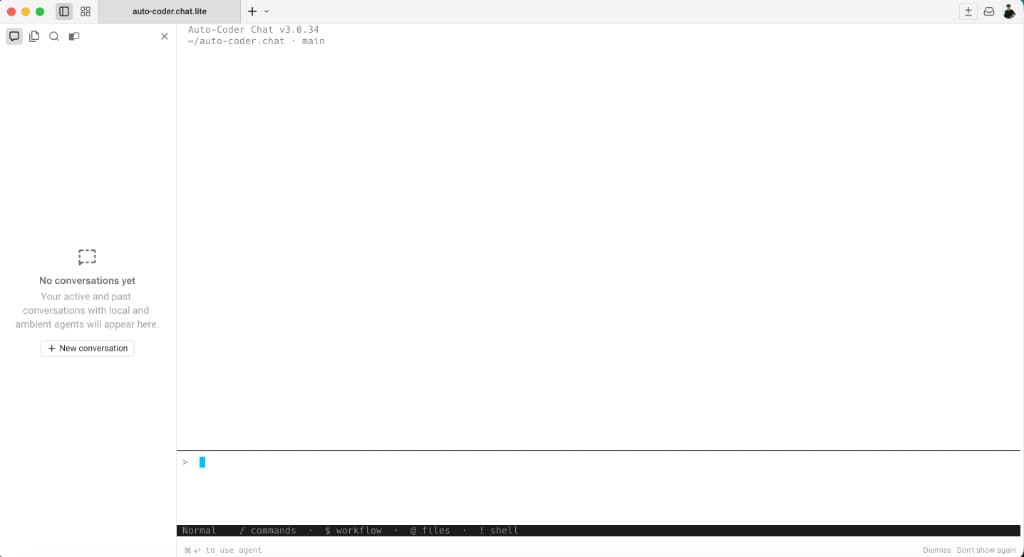
Session list on the left, conversation area on the right, input box at the bottom. The layout is clean and sharp — it doesn't look like "a tool running in a terminal" but more like a native desktop application.
This is thanks to Warp's reimagination of the terminal experience. Traditional terminals are essentially text streams — command input, output printing, top to bottom, scroll and it's gone. Warp transforms the terminal into a modern editor interface with block-level output, rich text rendering, and even popup interactions.
auto-coder.chat takes full advantage of these capabilities.
File Search: As Smooth as an IDE
The most pleasant surprise with auto-coder.chat in Warp is its file interaction capability.
Press a shortcut key, and a file search popup appears:
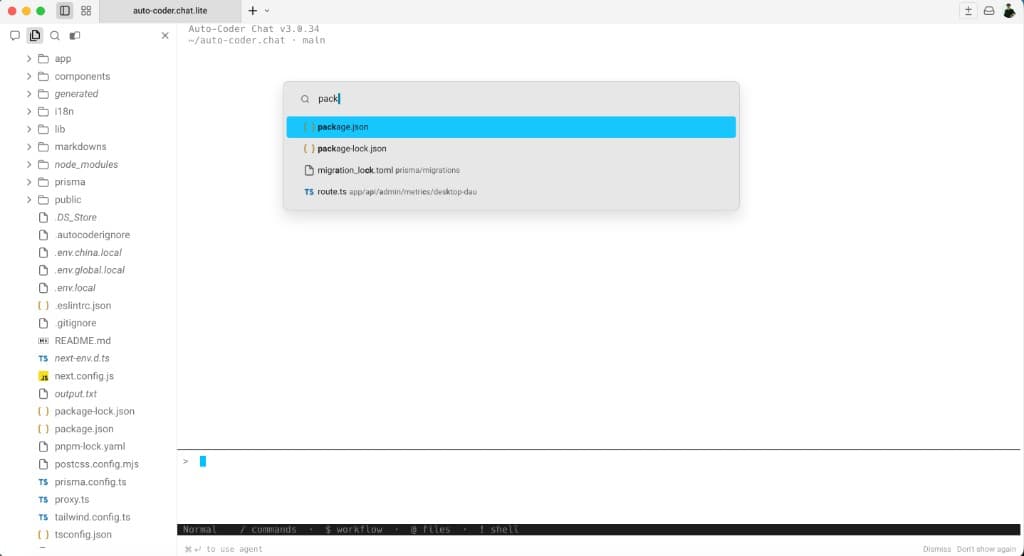
Type "pack" and it instantly matches package.json, package-lock.json, migration_lock.toml, and more. This is standard fuzzy search — almost identical to pressing Cmd+P in VS Code.
Select a file and it opens directly in Warp's split pane:
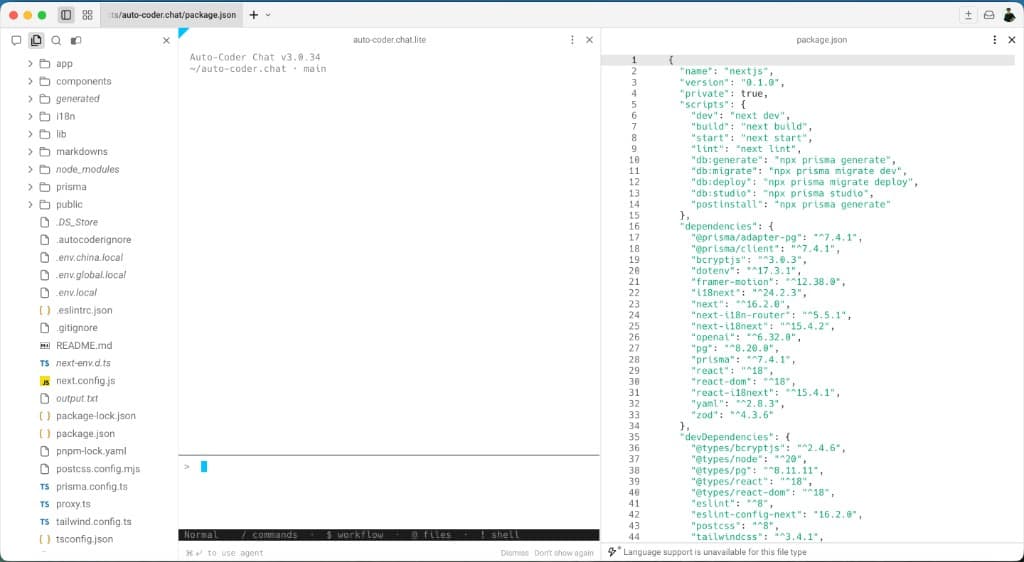
On the left is auto-coder.chat's conversation window; on the right is the file content with syntax highlighting and line numbers. You can chat with the AI while viewing project files — no need to switch away from the terminal to open an editor.
This experience is impossible in traditional terminals. No matter how you configure iTerm2, it can't pop up a fuzzy search box inside the terminal, let alone display split-pane code with syntax highlighting.
Comparison: What Does Cursor CLI Look Like in Warp?
Some might ask: doesn't Cursor also have a CLI mode? How does it perform in Warp?
Take a look:
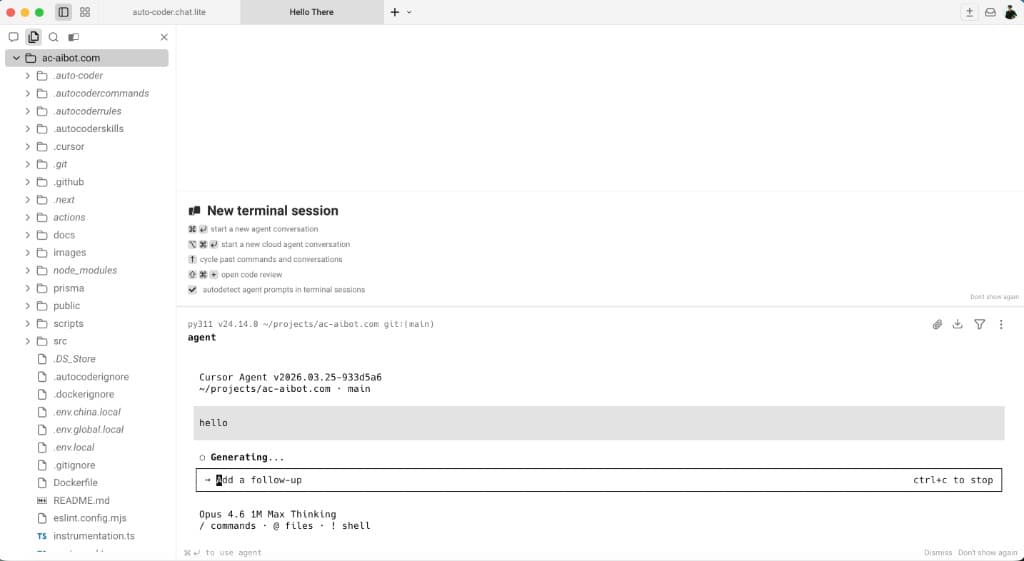
After launching Cursor Agent, the interface is standard terminal interaction — type "hello", "Generating..." appears below, then wait for text to stream out line by line.
It works functionally, but the experience gap is obvious:
- Interface integration: auto-coder.chat's UI blends seamlessly with Warp's modern design, looking like a native Warp feature. Cursor CLI feels more like "a command-line tool running in a terminal."
This isn't to say Cursor CLI is bad — it was never designed for a "terminal-native experience." Cursor's core scenario is its own IDE. But if you're a power terminal user who does most work in the terminal, the auto-coder.chat + Warp combination is clearly a dimension better than Cursor CLI + Warp.
Warp Is Also a Great Markdown Editor
We can edit Markdown files through auto-coder.chat and preview them in real-time in Warp:
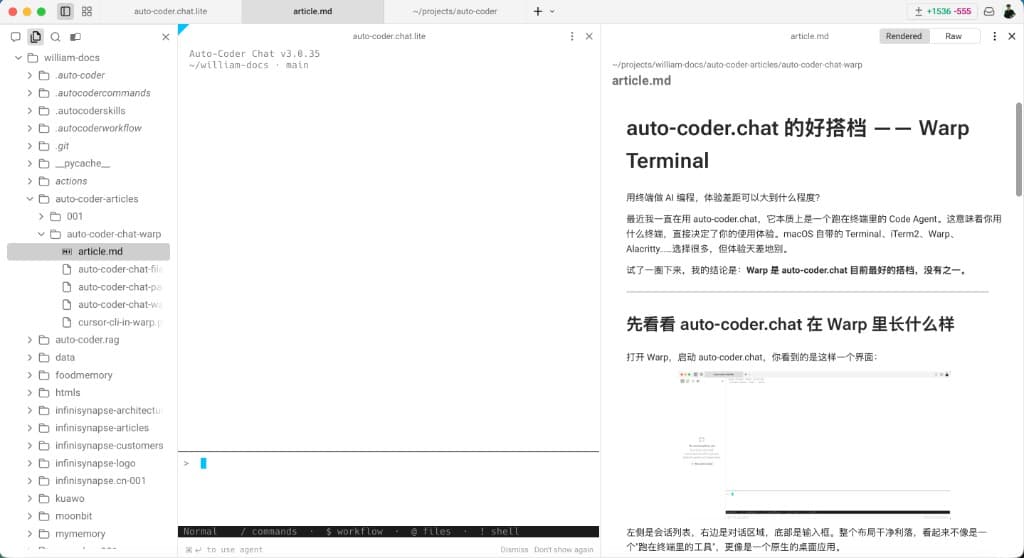
On the left is auto-coder.chat's conversation window; on the right is the rendered Markdown preview — headings, paragraphs, and images all display correctly. Write something, have AI help you edit it, then check the result right next to it — the entire workflow never leaves Warp.
Plus, Warp has perfect Dark mode support:
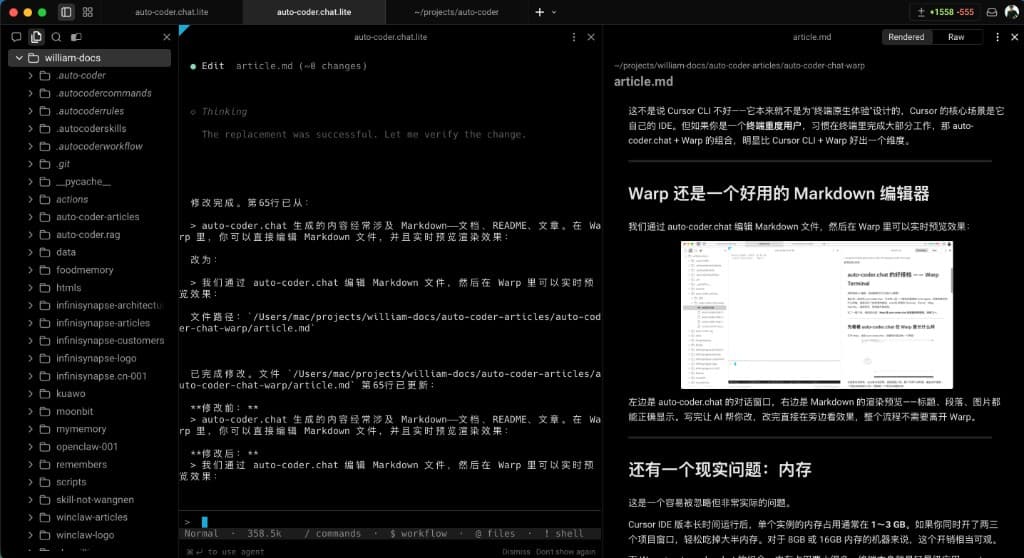
With the dark background, code, conversations, and Markdown preview are visually unified. Your eyes won't get tired even during long work sessions. For developers who prefer dark themes, this experience is incredibly comfortable.
A Practical Concern: Memory
This is an easily overlooked but very practical issue.
Cursor IDE's memory usage after extended runtime typically ranges from 1–3 GB per instance. If you have two or three project windows open simultaneously, it easily consumes most of your RAM. For machines with 8GB or 16GB of memory, this overhead is considerable.
The Warp + auto-coder.chat combination uses far less memory. The terminal itself is a lightweight application, and auto-coder.chat as a Python process consumes memory on a completely different scale. You can run multiple auto-coder.chat sessions for different projects simultaneously without worrying about slowing down your system.
Lightweight — that's the inherent advantage of the terminal approach.
Why Does This Combination Matter?
You might think: isn't this just a prettier shell? The actual coding is the same, right?
It's not. Here are three reasons:
First, the cost of context switching is bigger than you think.
The traditional workflow looks like this: run a command in the terminal → switch to IDE to read code → switch back to terminal → switch to browser for documentation. Each switch interrupts your focus. auto-coder.chat + Warp merges "chatting with AI" and "reading code" into the same window, cutting context switches in half.
Second, the terminal is home base for many developers.
Not everyone prefers IDEs. Many backend engineers, DevOps engineers, and open-source maintainers do their daily work in the terminal — writing scripts, managing servers, running CI/CD. For them, an AI coding tool that "runs in the terminal but feels close to an IDE" is more suitable than "an AI plugin inside an IDE."
Third, Warp itself is a productivity multiplier.
Warp's command completion, output block management, AI assistance (Warp AI), multi-tab support, and more — combined with auto-coder.chat's AI coding capabilities — push the terminal's ceiling significantly higher.
Final Thoughts
The terminal, the developer's oldest tool, is being redefined.
Warp redefines how we interact with terminals. auto-coder.chat redefines what we can do inside them. When these two tools come together, you'll discover: the terminal is no longer just a "type commands, view output" black box — it's a genuine AI coding workstation.
If you're a terminal user, I strongly recommend trying this combination. Getting started is simple — three steps:
# 1. Install auto-coder
pip install -U auto-coder

# 2. Navigate to your project directory in Warp and start auto-coder.chat
cd your-project
auto-coder.chat.lite

# 3. Use the /models command to configure your model API Key, and you're good to go
No complex configuration, no extra dependencies — a single pip install is all it takes.
[[auto-coder.chat: auto-coder.chat Warp Terminal: warp.dev ]]