
I ran into three major challenges while using Grok Bot:
- How could it reach other agents? It needed to find an agent in a particular project on a particular computer, assign work, and follow its progress.
- How would files and information move between them? Screenshots had to reach the writing computer, articles and images had to come back together, and progress updates needed somewhere to continue.
- How could it use my existing apps? I already used a health management app. I wanted a Health bot to work with the same account and records, handling check-ins and queries for me.
I now use a custom AC Chat tool to submit tasks to auto-coder.chat, where the Auto-Coder clients on my computers pick them up and run them. Post to me carries information and files. Product CLIs, including Vilian's, let the bots use my existing apps. Grok Bot's computer has acchat, posttome, vilian, and sparse-memory, the CLI for my cloud memory service at memory.sparse-agent.com.
Here is how each part works.
Reaching an agent on another computer
I use agents across several computers and projects. Articles, for example, are written in the william-docs project on Homestudio. Revisions to a business plan (BP) have their own conversation. When Grok Bot receives a request, it needs to send the work to that specific place.
AC Chat is the communication tool I customized for it. The command is acchat, and the service behind it is auto-coder.chat. The platform lets me manage AI agents, conversations, and tasks on my computers through the web or a phone, while the computers do the actual work.
Each computer has Auto-Coder installed. In a project directory, I run the background service auto-coder.cloud, or auto-coder.chat.lite if I want a terminal interface. Both use CloudBridge to connect the server to the local project. Each project directory registers as an “instance,” so one computer can have several project instances.
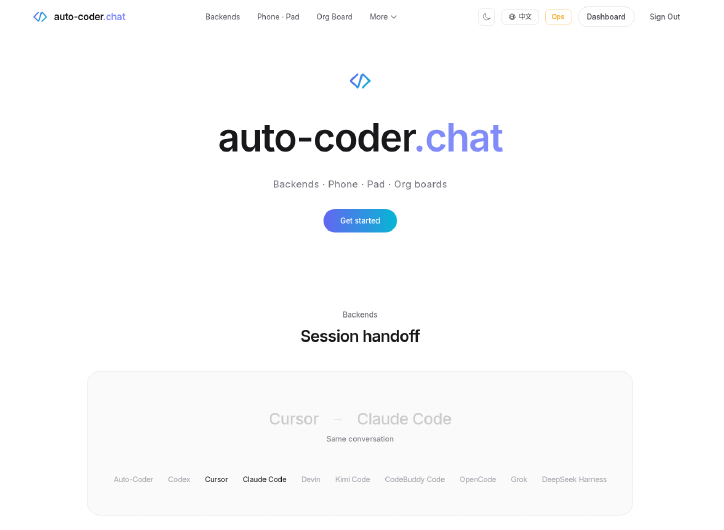
Figure 1. The auto-coder.chat homepage shows support for multiple agent backends and continuing conversations.
For an article revision, Grok Bot submits a task through acchat. The task waits in a queue on the auto-coder.chat server. The writing project's CloudBridge polls for work, claims the task, and runs it in the local project directory. It sends status updates and results back over HTTP. Cancellation instructions reach the computer through its heartbeat, too.
The connection starts from the computer. CloudBridge polls and sends heartbeats over HTTPS roughly every 10–20 seconds, so the computer needs no public inbound port. I can take my laptop out and still send it tasks as long as it is online. Laptops and other computers can all connect this way, project by project.
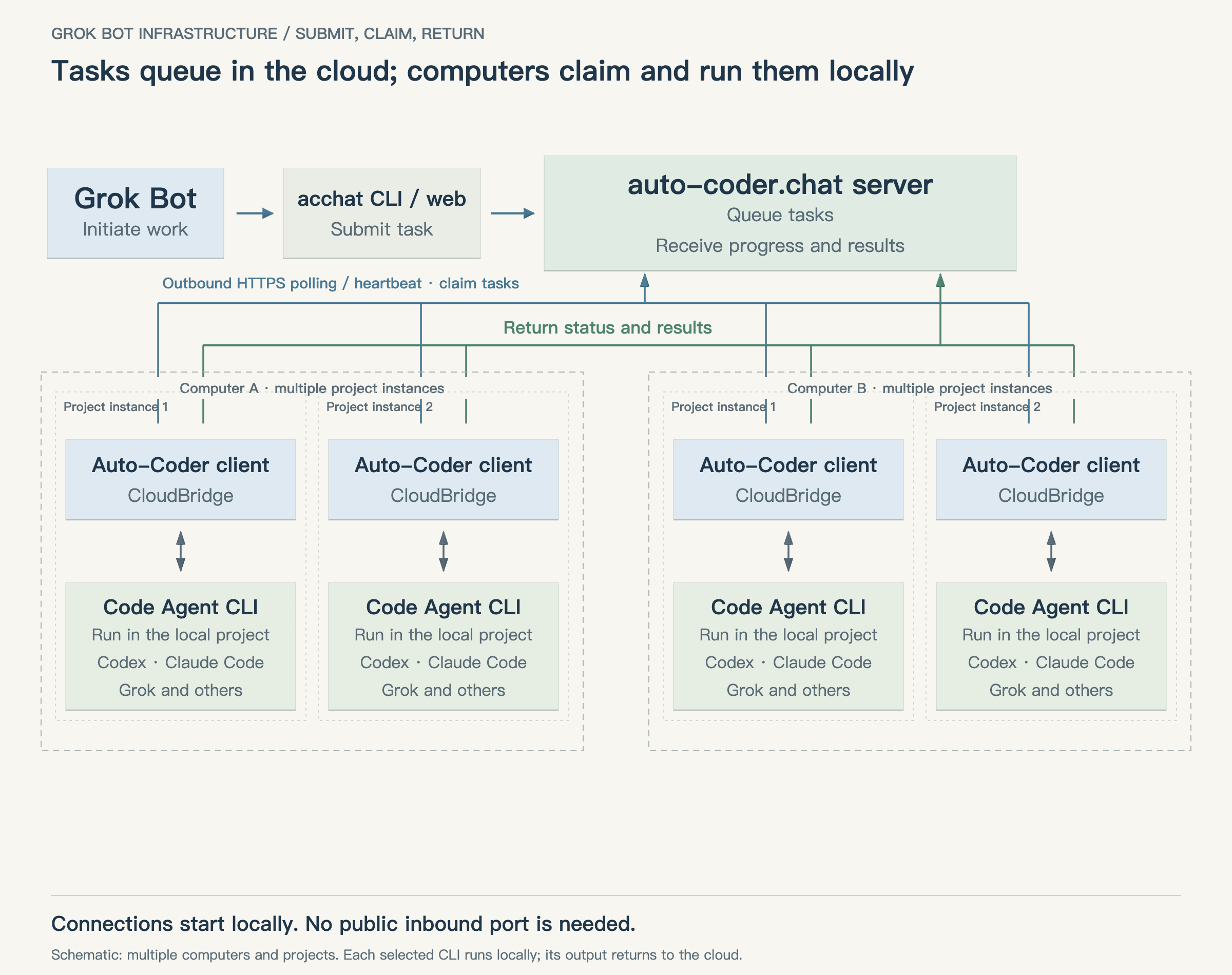
Figure 2. Grok Bot submits tasks through AC Chat, using the acchat CLI or the web interface. The server queues them; each computer's CloudBridge connects, claims work, calls a CLI in the selected local project, and returns the results. The computers and project instances are schematic.
The backend setting chooses the agent that does the work: auto-coder, codex, claude-code, grok, and others. To use Codex, Claude Code, or Grok, its CLI must already be installed on the computer and signed in to its own account. Auto-Coder starts the selected CLI as a real local process in the specified project directory. For example, it uses codex exec --json for Codex and claude -p for Claude Code. It passes in the task, collects the returned text, tool calls, and execution results, and sends them to the cloud through CloudBridge.
This gives Grok Bot a way to operate Codex, Claude Code, or Grok on any connected computer. It is how I implement project agents: the files and the work stay in their project, while the relevant bot in Grok Bot assigns the task and follows up. In the previous article, I described three layers of responsibility. I (WilliamZhu) share the top layer with the Chief Reporting Officer. Domain bots such as Finance, Home Agent Steward, and Social Media sit in the middle, with the project agents they manage at the bottom. This communication path connects the domain bots to those project agents.
In practice, I start with acchat instances list and locate the instance by the computer's hostname and project path. Mob Studio, Homestudio, and Winstudio each have their own project instances. Once I have chosen one, I specify the conversation, backend, and model. A model specified for an individual task takes priority, followed by the conversation's selected model, then the default configuration. Here is an article revision request, using placeholder IDs:
acchat instances list
acchat models select --instance INSTANCE_ID --conversation CHAT_ID --backend codex --model gpt-6.1-sol
acchat runs create --instance INSTANCE_ID conversationId=CHAT_ID \
  promptText="Use the article-writing skill to revise the current article. Do not publish." \
  displayText="Revise the article"
I can name a skill such as article-writing in the instructions. The selected agent receives the project's or global SKILL.md instructions through the task prompt so that it can read and follow them.
Later revisions use the same conversationId. A local backend_sessions.json file maps Auto-Coder conversations to the CLIs' native sessions, allowing the next run to resume the original CLI conversation. When I switch backends, the existing conversation history passes the context to the next agent. The InfiniSynapse BP went from v1 to v6 in one conversation. These two articles each have their own conversation, where I can give feedback on the previous version.
After sending a task, I check its status with acchat runs list/get. If I have an addition while it is running, runs forward passes it in. If the run has finished, I start a new follow-up run in the same conversation. The two additions to the first article used those two different routes: the closing viewpoint went into a running task, while the Finance and Project Security bot material was sent as a new follow-up run after the previous one had finished.
If you want your own bot to reach project agents on your computers, auto-coder.chat is where you can look at this way of working remotely. What I use most is straightforward: choose the right project and conversation, send the task, and keep revising there.
Sending screenshots out and getting the article back
Once the task can reach the agent, the source material has to get there as well. Both articles used screenshots. The writing agent needed the images, then had to return the text and illustrations together. I use Post to me for these exchanges.
Post to me is an authenticated inbox. Agents and programs submit text, images, and files through an API or CLI. I can view them together on the website and discuss them in replies to the post. Material can arrive from one device and be retrieved on another, or be handed to another agent.
The publicly available client is PostToMe CLI v0.4.0, downloadable from the WinClaw App Store. Packages are available for macOS Apple Silicon, Windows x64, and Linux x64/ARM64; there is no Intel Mac package yet. Agents send and receive through posttome in the terminal, while people can view and reply on the web.
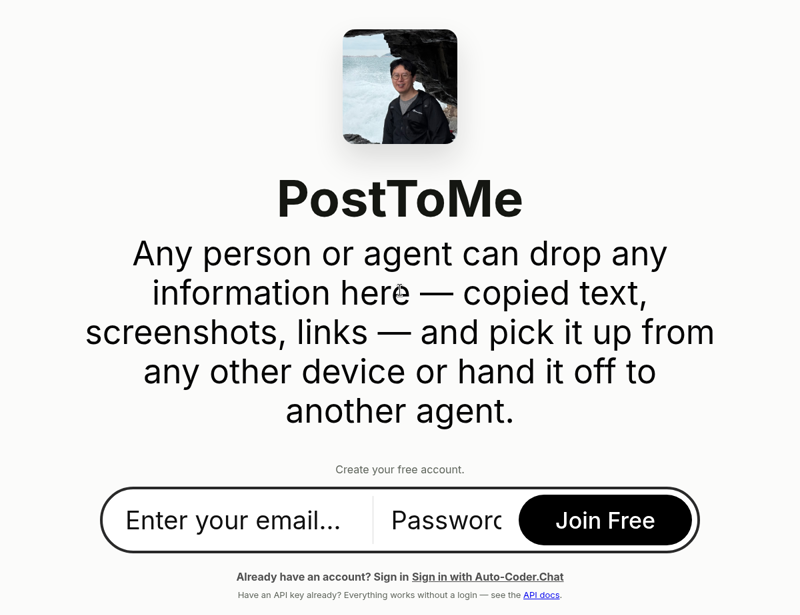
Figure 3. Post to me's public homepage describes receiving information across devices and passing material to another agent.
When the previous article was finished, the project agent on Homestudio packed the text and images into a ZIP and sent it back through Post to me. With the submission and attachment IDs, Grok Bot could download it on its own computer. Screenshots took the reverse route: Grok Bot uploaded them and gave their IDs to the writing agent, which used get to download them into the article's images/ directory.
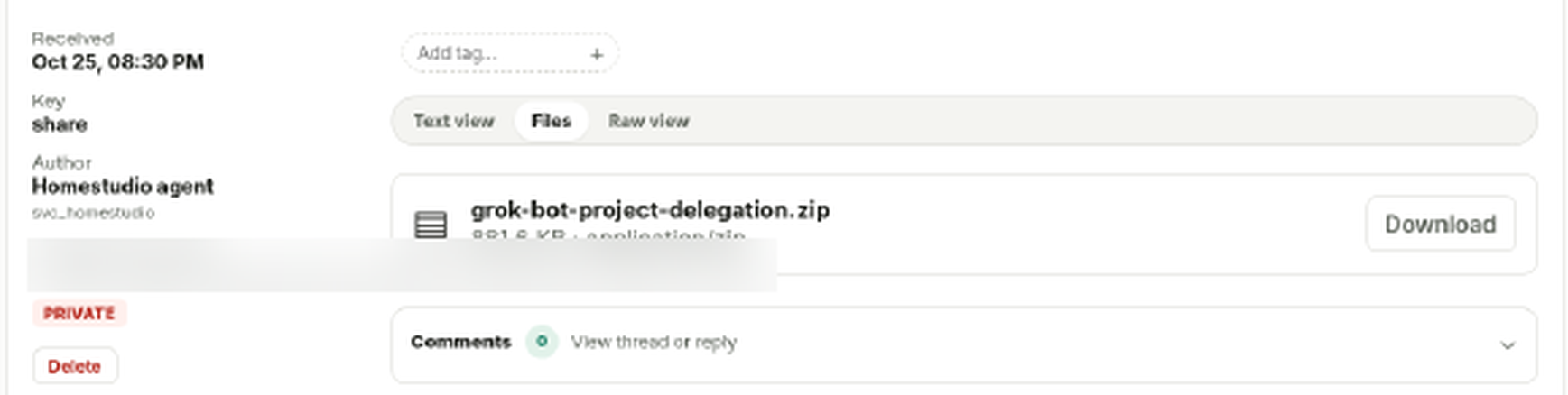
Figure 4. The Homestudio post returning the article ZIP. This detail is taken from the redacted, cropped screenshot and focuses on the attachment.
One file handoff between agents takes two commands. In this example, the CLI already has an account configured, the IDs are placeholders, and the upload and download run on different computers:
# Writing computer: upload
posttome post --attachment article.zip \
  --service-id SERVICE_ID --service-intro "Writing agent" --format json
# Grok Bot's computer: download
posttome get POST_ID --file-id FILE_ID --output article.zip
The upload returns the submission and attachment IDs; the recipient uses them to retrieve the file. I also ask the writing agent to reference images as images/filename.png and package them with the article. On another computer, I can unpack the ZIP and keep reading or editing. I do not have to find each image or recreate the original computer's directory structure.
Shared information can continue in one thread, too. The Chief Reporting Officer opened a work registration post in Post to me, where the bots leave progress updates in the comments. When something changes, they add a reply. Later, the earlier updates are still there to read. For day-to-day use, list finds posts and comment adds information. For directed messages, push, listen, and ack handle sending, receiving, and acknowledgment.
The task carries the IDs of its source material, and the result comes back with the IDs of its files. Both sides can find what they need to work on next. To try a round trip, start at posttome.app and use the upload and download commands above to send a file and retrieve it.
Letting a bot use an app I already use
When I talk about letting Grok operate everything, I also mean connecting it to products I already use. Health management is a direct example. I use our own Vilian app, and I have created a Health bot in Grok Bot. Through the vilian CLI, it works with the app to handle quick check-ins and look up records.
Vilian supports medication plans, check-ins, records, queries, assessments, and exports. Its website, iPhone app, Android app, and CLI use the same account data. When I view a record on my phone and the Health bot calls the API on its computer, we are using the same data. My existing records remain available, and I can have the bot handle routine operations.
When connecting a product, I first have the agent read its help. The heading of vilian --help translates as “Vilian CLI: The Complete Operating Manual for Agents.” This is an excerpt of the actual output on Grok Bot's computer on October 26, 2026, with the comments translated into English:
vilian --help                    # This manual and details of every command
vilian --skill                   # The same full content, suitable for an Agent SKILL.md
vilian help checkins record      # Parameters, limits, and examples for one command
vilian plan --help               # Help for a command group
vilian api list                  # Machine-readable command catalog
vilian api describe plan.create  # JSON contract for a command
This is what I mean by “--help is a skill.” The agent learns which functions exist, then looks up their parameters, limits, and examples, and follows the product's way of doing things. To record a check-in, it reads the relevant command's instructions first. To see existing records, it calls the query function.
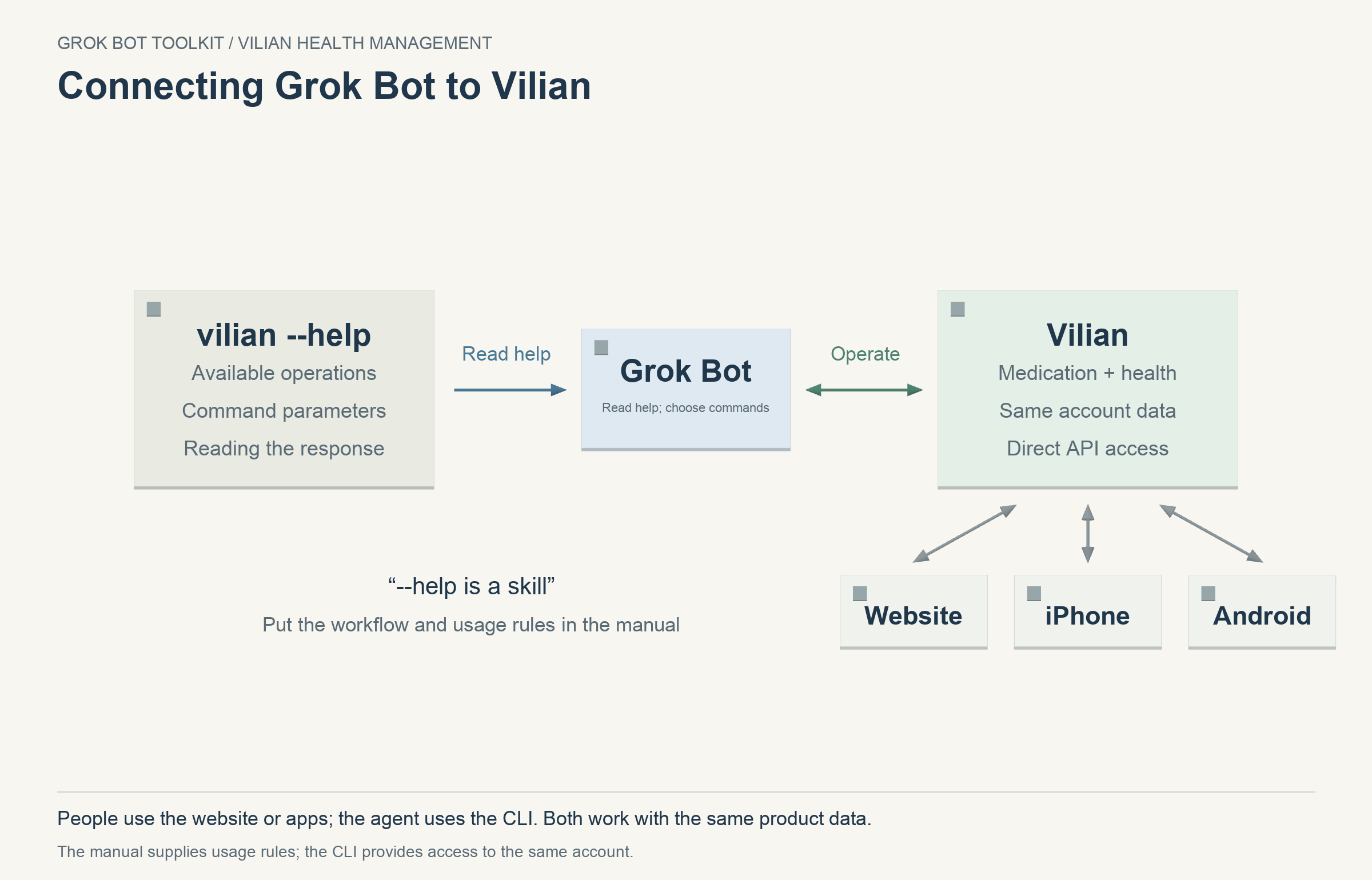
Figure 5. Grok Bot uses Vilian through its CLI. The website, iPhone app, and Android app access the same account data.
These products give the bot their working methods as well. The product already has a process for organizing medication plans, saving check-ins and records, and querying them later. Once the Health bot connects through the CLI, it can follow that process to manage medication and keep track of my health. Vilian's website is healthy.winclaw.cn, where you can read about the app.
Storage and memory come with these tools, too. Health records stay in Vilian, handoff files go into Post to me, and sparse-memory is where the bot looks up existing memories.
Running one piece of work from start to finish
If I were setting this up for my own Grok Bot, I would begin with a task I already needed done. Find a connected project conversation, send it a task and the source material, and retrieve the result. Connect an app I actually use, have the bot read its help, and complete one operation. That shows whether communication, file handoff, and product operations are all connected.
When giving instructions to a remote agent, I explicitly say “use the terminal CLI.” I also specify the skill, which conversation to continue, where images should go, how to package the result, which IDs to report, and whether publication is allowed. These two articles were revised back and forth with instructions this specific.
With these pieces in place, Grok Bot can contact the agents in my projects, get files to them, and continue using my existing health app. Now, to revise a BP, write an article, or record a check-in, I just tell the relevant bot what I need.
中文版 · Previous article: A Company Organization Inside Grok Bot