
We have recently added two capabilities to Sparse Agent, our personal assistant product: Remote Desktop and Dense Agent. Remote Desktop lets users enter the cloud desktop and sign in to accounts in the browser. Dense Agent provides a place to handle temporary tasks through an ongoing conversation, with the execution process and results available in the same session.
This update also makes the two working styles clearer: Dense Agent handles the things you want to work through now, while Sparse Agent acts as a digital employee responsible for ongoing work. Both are part of the same product, so you can choose the entry point that suits the task.
This article covers the interface and features available as of October 21, 2026. You can sign in with an Auto-Coder.Chat account at https://sparse-agent.com.
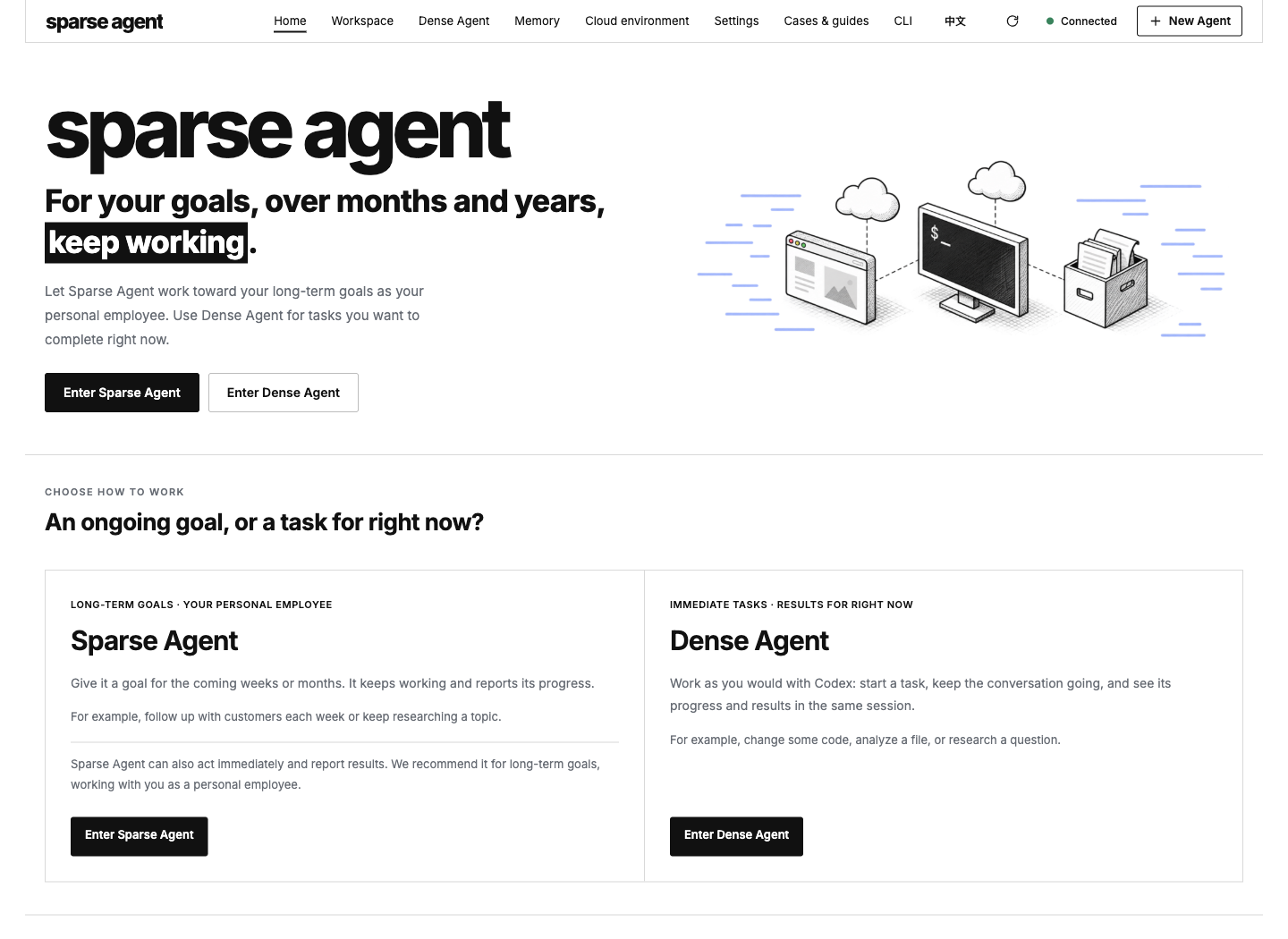
The updated homepage provides separate entry points for long-term goals and immediate tasks.
Remote Desktop lets users sign in themselves
Account access is a common part of asking an Agent to work with a website. When a site requires a password, a QR code scan, or identity verification, the user needs to take part. For work that depends on personal accounts, this is a practical step in getting the Agent ready.
You can now open Remote Desktop from Cloud environment and click Connect desktop to see the cloud Omarchy desktop directly in a web page. Omarchy is the Linux desktop environment where the Agent works, with browsers and application windows. Using your mouse and keyboard, you can operate those windows and sign in within the browser the Agent is using.
For example, if you want the Agent to work with a site that requires an account, open Remote Desktop, find its browser window, and follow the site's steps to enter your account details, scan a code, or complete verification. Once you have signed in, ask the Agent to continue in that browser. You can complete the login yourself without putting your account password in a task message.
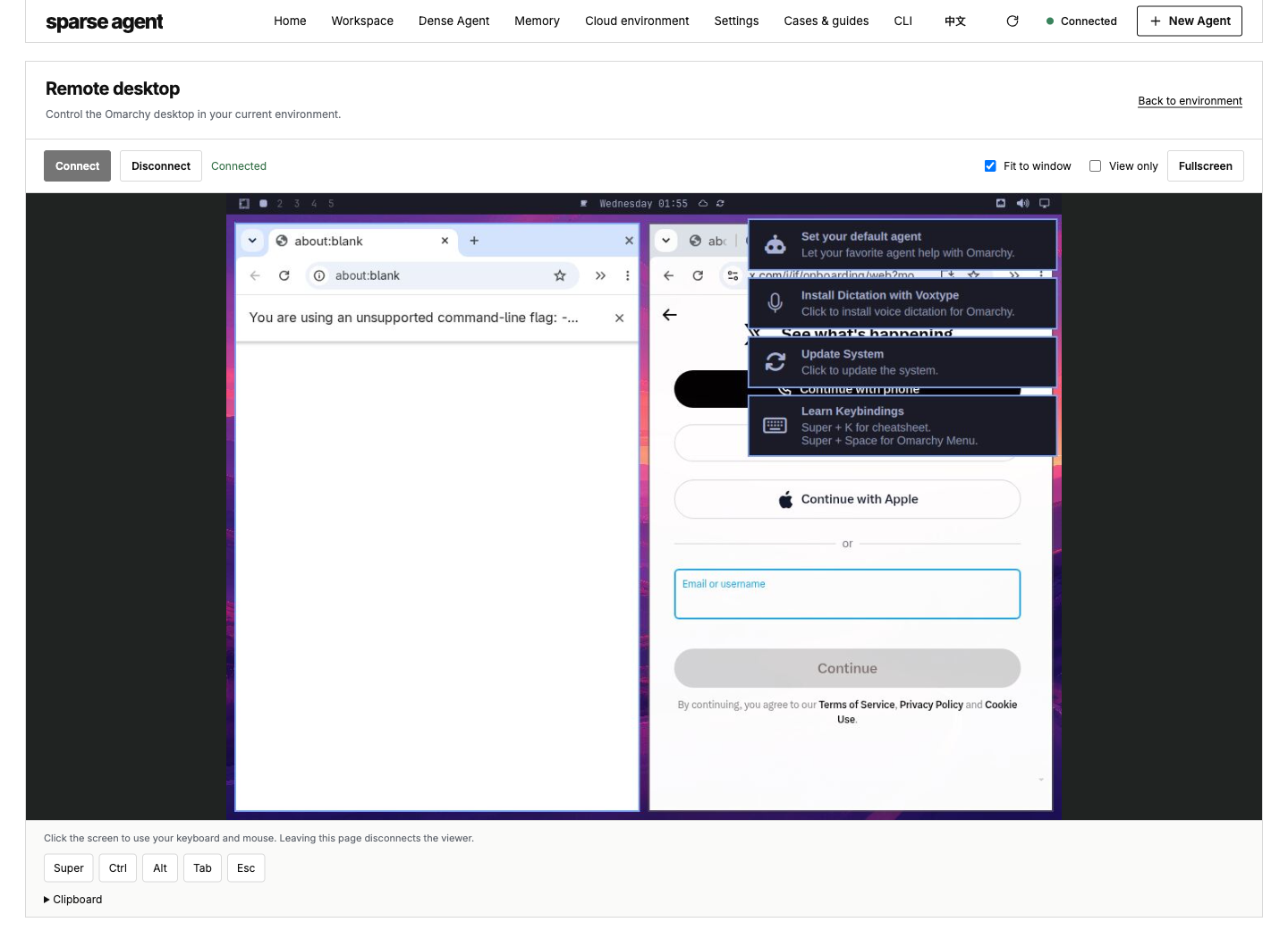
The cloud desktop is accessible in the web page, including the browser's login screen. No account details have been entered.
Remote Desktop also provides fit-to-window scaling, full screen, view-only mode, and a text clipboard. The toolbar can send keys such as Ctrl, Alt, and Tab. You can use it to check the current screen, enter some text, or take over when the Agent needs help.
Leaving the Remote Desktop page or disconnecting closes the viewer connection; the cloud desktop and applications keep running. After completing the necessary steps, you can return to the workspace and continue arranging the work.
This feature currently supports Omarchy environments on DigitalOcean. Existing older environments need a corresponding update before Remote Desktop is available. Standard Ubuntu and Kubernetes environments do not include a graphical desktop by default.
Dense Agent handles the task in front of you
Many everyday tasks benefit from your active involvement: organizing material you have just received, analyzing a file, changing some code, or researching a question that has come up. You review the result, add requirements, and work toward completion in the same conversation.
Dense Agent provides a dedicated entry point for this work. You can select a project, create a conversation, send a message, and continue discussing the execution process and results. Files and images can be attached when needed. Separate tasks can have their own conversations, with records available to revisit later.
The sidebar organizes content as node, project, and conversation, and groups nodes by online or offline status. When you have more projects, search and Locate current help you find the right conversation.
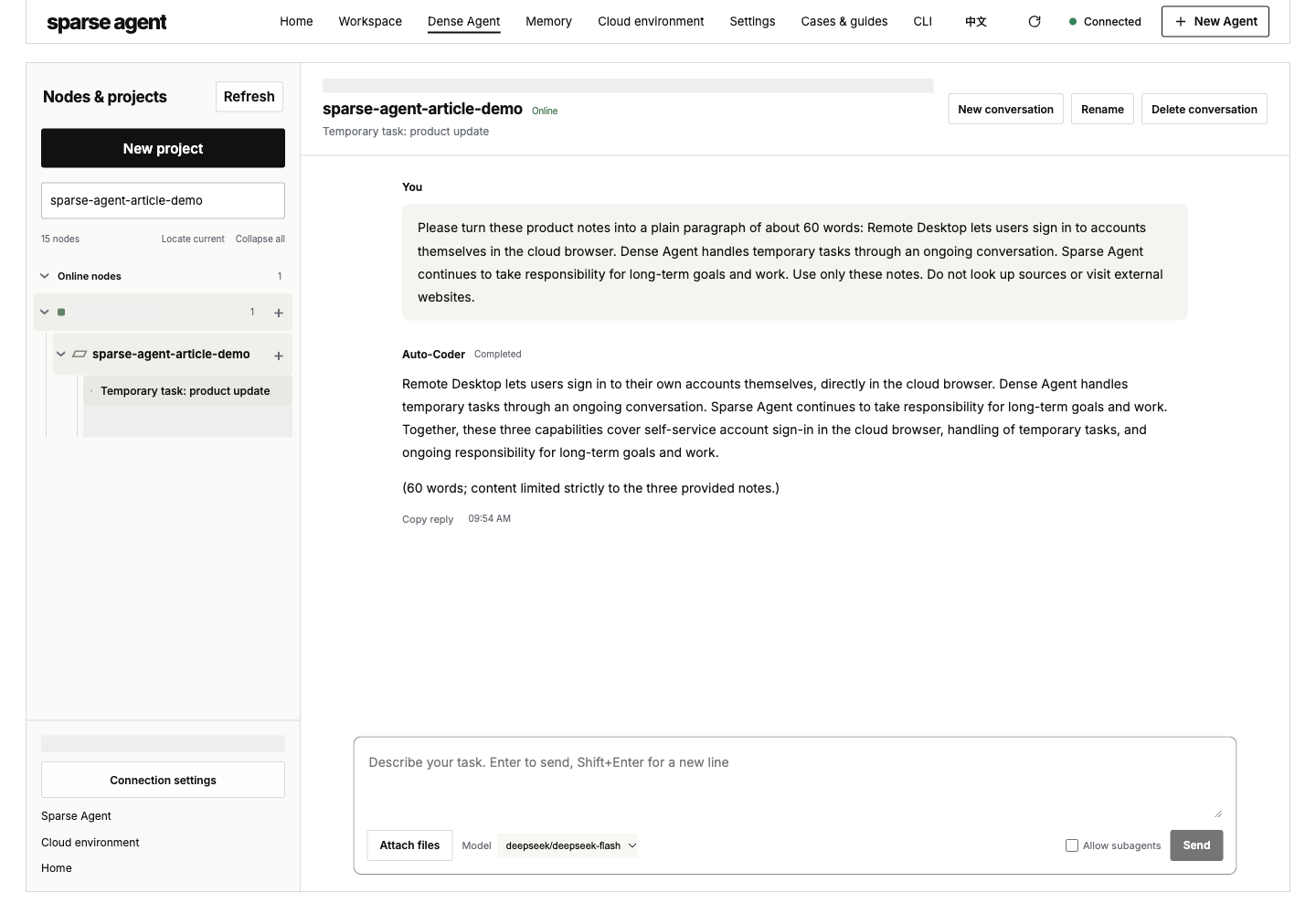
Dense Agent's project and conversation interface. The demonstration summarizes product update notes; the account and node names are masked.
Suppose you have just received some product update notes and want to turn them into a short explanation, then adjust the tone and length. You can work through those revisions in Dense Agent. You guide the task in the current conversation and add new requirements there.
Creating a Dense project in the current cloud environment creates a separate working directory and its execution service. Projects and conversations connect to your Auto-Coder.Chat account. They use the existing environment, so each temporary task does not require another cloud computer.
Sparse Agent stays focused on ongoing responsibilities
Other work continues for weeks, months, or longer: tracking developments in a field and preparing weekly summaries, running product accounts and reviewing content feedback, or following up on customers and projects over time.
Sparse Agent is designed for these responsibilities. We continue to build it as a digital employee: you explain the work it owns, the results you want, and the requirements it must follow. The Agent works toward those goals, saves its progress, and arranges subsequent actions.
When creating a Sparse Agent, you can provide Goal, KPI, and Constraints. In everyday terms, these describe what to do, how to check progress, and which rules to follow. Making them clear gives later rounds of work a shared reference.
For example, you could assign a research assistant to track developments in your field for three months. Require a weekly summary, a source for each item, and an explanation of what has changed since the previous week. Ask it to request help when login is needed and to get your confirmation before sending material externally. You follow progress through periodic reports and can adjust the direction along the way.
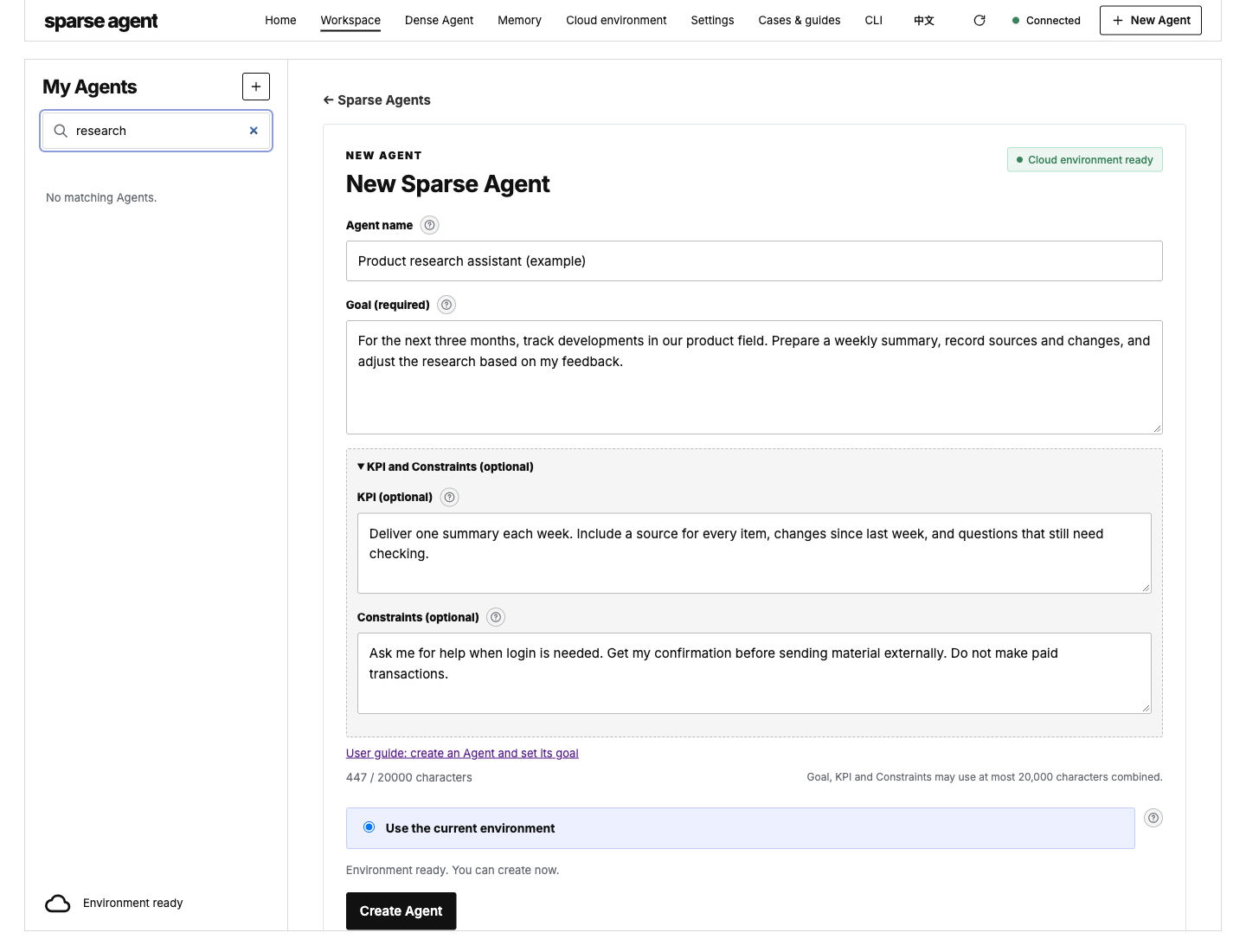
An example of a research assistant's configuration. The screenshot shows the creation form; this long-term task has not been started.
The main difference between Dense Agent and Sparse Agent is how you work together. For a file that needs attention now, you guide the task through a continuous conversation. For an ongoing research responsibility, you define the goal, then adjust the work through reports and feedback.
Sparse Agent can also execute tasks immediately and return results. Ongoing responsibilities are the work we particularly recommend it for. You can also use Dense Agent to work through a temporary need before deciding whether it should become a longer-term responsibility.
Plans to release the source code
We also plan to release the Sparse Agent product source code so users can deploy it privately, run it in their own environment, and adapt it to their needs.
The intended scope of use is clear: private deployment will be allowed, but using the product to provide a cloud service to others will not be permitted. The specific license terms, source repository, and deployment instructions will be published when the code is released. This is a plan; the source code has not yet been published.
Remote Desktop provides a way for users to handle account access themselves. Dense Agent handles temporary tasks, while Sparse Agent remains focused on work that needs sustained attention. We want users to be able to take part in the task at hand and entrust an ongoing responsibility to a digital employee.
Product website: https://sparse-agent.com